Jia Zhou, Pei-Luen Patrick Rau, Gavriel Salvendy, Jie Zhanga (2021). The Elderly’s Text Entry on Smart Phones and Tablets: Challenges and Implications. In: Advances in Affective and Pleasurable Design. AHFE Open Access, vol. 14. https://doi.org/10.54941/ahfe100556
This study aimed to investigate the elderly’s text entry experience on smart phones and tablets. An experiment was designed and conducted. During the experiment, 32 elders entered Chinese characters when using four applications (i.e., Contact, Microblog, Google Search, and Email) on four devices (i.e. Apple iPod Touch, Dell Streak, Samsung Galaxy Tab, and Apple iPad). They used two input methods (i.e. handwriting and typing) to enter text. The results indicated that although text entry on smart phones and tablets could avoid certain problems with feature phones (e.g. multi-tap), it also caused new problems for the elderly. They made 13 types of errors. The number and outcome of each error was recorded. This made it possible to check which error happen frequently but is easy to recover from, and which error seldom happen but is difficult to recover from. Based on the analysis of text entry errors, design suggestions were provided to improve the elderly’s text entry experience.
In daily life, the elderly have many difficulties due to age-related decline in physical abilities and cognitive abilities, but limited social resources could not guarantee that all the elderly people are well supported. This problem could be alleviated by using technical devices, so using technology to support the elderly draws more and more attention. Recent years, many countries such as United States, United Kingdom, Germany, Spain, Italy, Switzerland and Canada provide sizable funding for research on using technical devices to support independent living of the elderly (GPII, 2011; OASIS, 2008).
Among various technical devices, smart phones and tablets have the prospect of wide application for two reasons. First, they serve as a platform that integrates abundant applications and services, which could be useful for the independent living of the elderly. Second, they are replacing feature phones and taking more market share. For example, in United States, smart phones already represent 56% of mobile phone use (Orlov, 2013). Although they are popular among young adults (66% of young adults ages 18-29 own smart phones), only 11% of the elderly (ages 65 and above) have smart phones (Lee, 2012).
Due to increased exposure, some elders begin to use applications on smart phones such as Photo Album under social influence, but most of them are still reluctant to use applications that need heavy text entry. Text entry used to be the most challenging task on the limited display of feature phones, but it is not necessarily so difficult on smart phones and tablets. Due to new interaction technologies (e.g. direct gesture input on touch screens), smart phones and tablets could offer a brand new user experience.
However, smart phones and tablets might also cause new problems because they generally do not target the elderly and the interface is not tailored to the elderly’s requirements. Therefore, this study aimed to investigate the elderly’s text entry experience on smart phones and tablets, with the focus on difficulties that the elderly would have with this new user experience.
LITERATURE REVIEW
It is well documented that the elderly had great difficulties with text entry on feature phones. They usually failed to press the target key among compressed keys (Zhou et al., 2012). Besides, they could not understand the association between a key and its multiple labels. Therefore, they were confused about the changes of labels (Massimi et al 2007; Tuomainen and Haapanen, 2003), which resulted in their difficulty in using multi-tap to activate grouped letters on a key (Kurniawan, 2008). Furthermore, they had difficulty in distinguishing the short press and the long press (Kang and Yoon, 2008). These problems are applicable to feature phones with/without touch screens.
For feature phones equipped with touch screens, the elderly usually used a stylus to enter text. Since the stylus tip is smaller than the fingertip, the problems with compressed keys could be alleviated. However, the stylus-based interaction also caused a new problem: the elderly applied too much pressure using a stylus and resulted in redundant entry, or they applied too little pressure using a stylus and had to press a key again and again (Wright et al., 2000; Zhou et al., 2012).
Few studies investigated the elderly’s text entry on smart phones and tablets. Our previous study (Zhou et al., in press) covered this topic, but we only gave brief introduction about the elderly’s errors and did not dig into each error. Therefore, in this study, we will elaborate each error and discuss its implications for interface design.
METHODOLOGY
An experiment was conducted in the standard usability-testing laboratory in Tsinghua University. Recruiting flyers were distributed in Senior College of Tsinghua University. 32 elders (Mean age=67.2; SD=5.53; Range=60-79; 25 females, seven males) who were above 60 and used mobile phones participated in this experiment. Most of them did not own smart mobile phones but all of them were computer users. They were well educated (87.5% of them were at the college level and above).
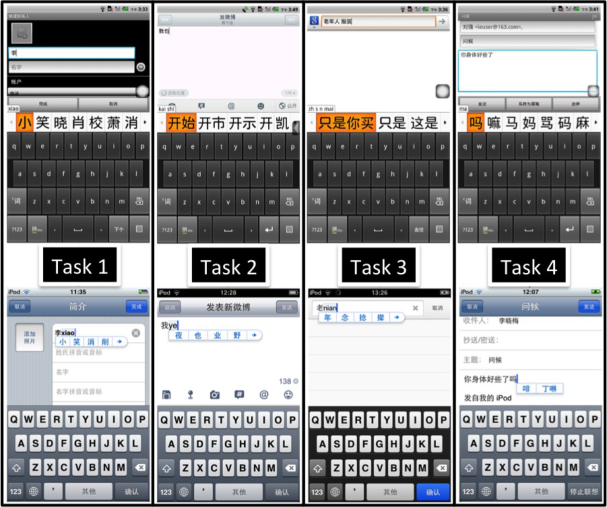
Each participant used four devices: Apple iPod Touch (3.5″, 480×320 pixel resolution, iOS), Dell Streak (5″, 800×480 pixel resolution, Android), Samsung Galaxy Tab (7″, 1024×600 pixel resolution, Android), and Apple iPad (9.7″, 1024×768 pixel resolution, iOS). On each device, they used four applications: iOS’s own and Android’s own contact function and email function, Sina Microblog (China’s version of Twitter), and Google Search widget/application (shown in Figure 1). Participants completed four tasks used in the experiment (listed as follows).
Each participant used either handwriting or typing to enter text. Each task had two trials and text in each trail contained Chinese characters, numbers, and punctuation marks. Task 1 contained three characters and 11 numbers, and the other three tasks contained nine characters and one punctuation mark. In order to make participants focus on the text input process and balance interaction steps in four applications, all the tasks only contained three steps: touch the new button (or enter text in the first input field), enter text in the only input field (or enter text in the second input field), and touch the save/send/search button. Other interaction steps were completed by the facilitator or participants, and the performance of other interaction steps was not counted.
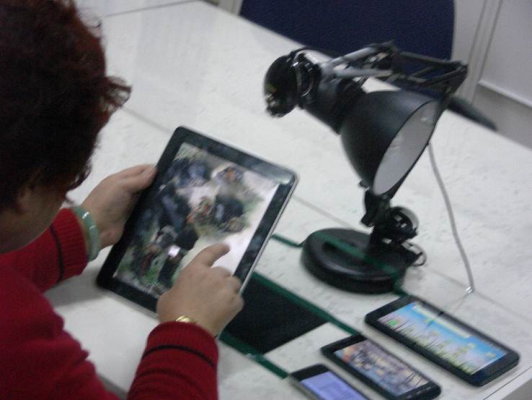
The entire operation process was recorded through two cameras. The first camera was mounted with a tripod which was at the upper right side of participants, and the second camera was mounted with a lamp on the desk which was directly above the display. To avoid blocking the view, participants’ hands were restricted in the area marked with a black mat and Scotch tapes (shown in Figure 2).
Task 1: Create a new entry in the contact function.
Task 2: Post a message in New-wave Micro blog Task 3: Search keywords in Google Search
Task 4: Send an email to the predefined contacts
Figure 1. Screen shots of text entry in four tasksFigure 2. The experimental scene
In the practice phase, participants first watched a demonstration of each task, and then they practiced until they verbally indicated that they were ready to do tasks without the help from the facilitator. In the formal experiment, when difficulties happened, participants were encouraged to solve the problem independently. Some of them worked out the problem successfully; some failed to work it out and skipped to the next trail; others failed to work it out and asked for help. The facilitator will not help participants until they tried but failed to work out the problem.
RESULTS AND DISCUSSION
This paper analyzed errors during text entry by video playback. Each participant had two videos and the each video lasted about one hour. It took the researchers around 300 hours to analyze the videos. The analysis process had two stages: Stage One: Developing a framework of errors. The researchers first wrote down all the types of errors mentioned in previous studies, and then went through all the videos to add or modify types of errors. The researchers watched video playback of 32 participants and recorded 26 kinds of errors, which were further grouped into 13 types of errors. This stage was only the qualitative analysis of errors, which meant that the numbers of errors were not counted.
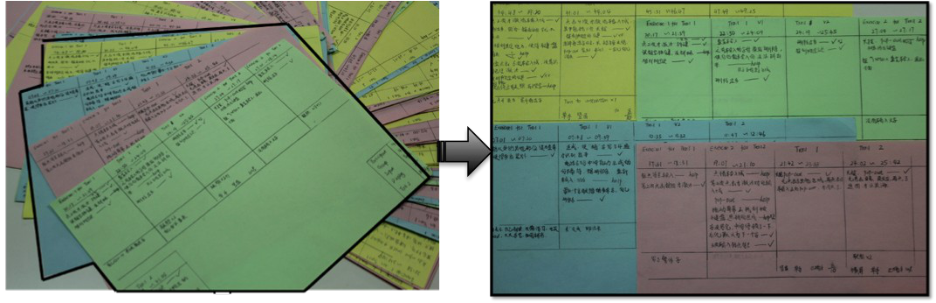
Stage Two: Counting the number of errors and tracking the outcome of each error. The researcher first watched the videos shot from the upper right side of participants to count the number of errors, and then the researcher watched the videos shot directly above the display in order to double check the number of errors. The researcher slowed down videos to count the number of errors, and some clips were repeatedly played back if necessary. Apart from the number of errors, the outcome of each error was also recorded. As shown in Figure 3, each time an error happened, the researcher recorded three outcome through marks and abbreviations: the check mark (worked out the problem independently), help (asked for help), over (quitted this trial).
Two frequently happened errors were not recorded in this study: touching the adjacent keys of the target key during typing and wrong sequence of stokes during handwriting. The first error happened too frequently to count on small displays, and the second error was related to the recognition algorithm, which was beyond the topic of this study.
Figure 3. Error recording table
There were 13 types of errors identified. As shown in Figure 4, errors were categorized by two dimensions: the number of errors and the percentage of unsolved errors. Some errors happened frequently but were easy to work out (e.g. errors caused by wrong pressure), and some errors did not happen frequently but were difficult to work out (e.g. misuse of the complete button). The following section provides detailed description of typical errors and corresponding design suggestions.
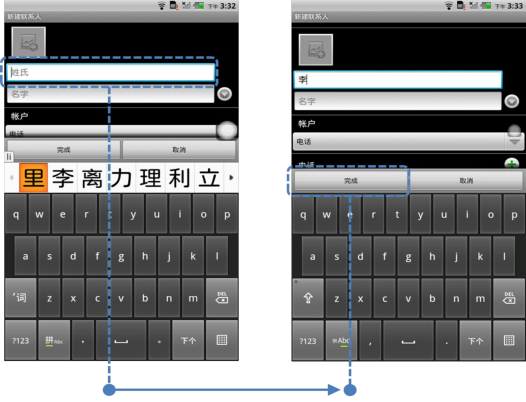
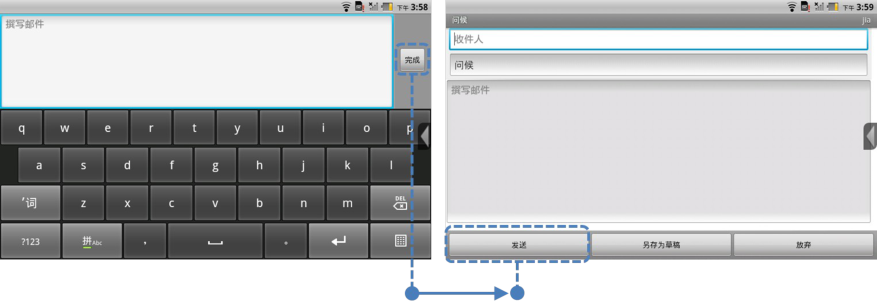
Misuse of the Complete Button 86.7% of participants who used typing and 83.3% of participants who used handwriting could not work out this type of errors independently. When using the complete button, some participants pressed the complete button after each step (see Figure 5); Other participants perceived that pressing the complete button should be the last step, so they did not understand why they need to press other buttons (e.g. the send button) after pressing the complete button (see Figure 6).
The logical relations between pressing the complete button and other interaction steps should be clear. The location of the complete button, the distance between the complete button and the input field, and the flow of interaction steps might influence the elderly’s anticipation of the logical relations.
Figure 4. Bubble Chart of Errors
Figure available in the original PDF paper.
Figure 5. Pressing the complete button after each stepFigure 6. Pressing the complete button is not the last step
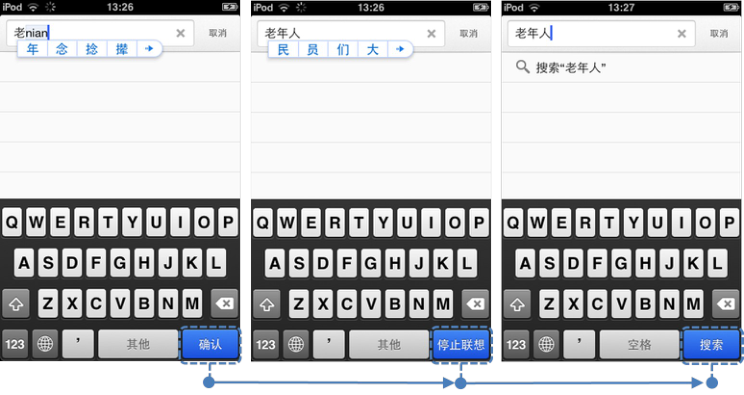
Failure to Understand Label Changes 75.9% of participants who used typing and 83.3% of participants who used handwriting could not work out this type of errors independently. They could not understand the changes in multiple labels associated with a button, which is consistent with previous studies (Massimi et al 2007; Tuomainen and Haapanen, 2003). Also, they did not know how to switch among letters, symbols, and digits, and to switch between English and Chinese, which is also consistent with previous studies (Li and Graf, 2007; Massimi et al 2007). In particular, for the elderly without computer experience, they do not know how many labels were there, and they did not know which would be next forthcoming label. For example, the elderly could not press the “Search” key until they pressed the “Stop Prediction” (shown in Figure 7). However, label changes of soft keys are common in handheld devices: the soft key to switch input methods, the soft key to switch between alphabet and symbols, and the soft key to switch keyboard layout (QWERTY keyboard, 12-key keyboard, digits keyboard). The consistency of labels should be noted.
Figure 7. Changing labels of a soft key
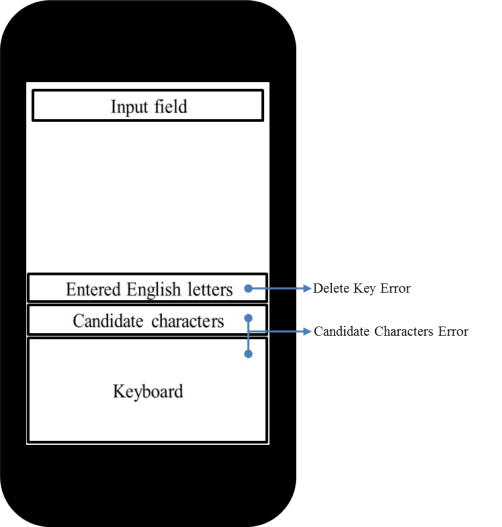
Overuse and Misuse of the Delete Key 43.9% of participants who used typing and 33.3% of participants who used handwriting could not work out this type of errors independently. Participants either pressed the return key to delete wrong letters, or they deleted more letters than needed. One possible reason is that they did not notice the small area of entered English letters (shown in Figure 8). Instead, they just used a trial-and-error strategy to press the delete key while they looked at the area of candidate characters.
Figure 8. Typing errors associated with four input areas
Failure to Access Candidate Characters 46.8% of participants who used typing and 68.4% of participants who used handwriting could not work out this type of errors independently. They had problems with browsing, choosing, and confirming candidate characters. Participants made errors when they accessed more candidate characters and returned back. They accidently touch the keyboards and resulted in errors when they chose candidates characters near the keyboard (shown in Figure 8). They did not know how to make the candidate characters go to the input fields and they were not sure if they need to tap the candidate characters.
Accident Activation of Pop Outs 39.0% of participants who used typing and 43.6% of participants who used handwriting could not work out this type of errors independently. There are two kinds of pop outs. One kind of pop outs that won’t disappear automatically, and participants usually touched the screen arbitrarily but usually did not know how to make it disappear. Another kind of pop outs disappears automatically (e.g. the magnifier, copy and paste in iOS), and most participants would just ignore them. During typing, participants usually had long press or used slide instead of tap, which resulted in pop-out options. One possible reason might be that the elderly had difficulty with distinguishing short press and long press (Kang and Yoon, 2008).
Failure to Activate Input Area 29.1% of participants who used typing and 25.9% of participants who used handwriting could not work out this type of errors independently. During typing, participants usually looked at the screen without keyboard and did not know where to start. They did not know the need to tap input fields to access on-screen keyboards. This is supported by Dickinson et al. (2005). After they knew the need of activation, they tapped many times to activate input fields, and they usually kept tapping without realizing that the input field was already active. Apparently, highlighting the input field is not enough, and more apparent feedback for input field activation is needed.
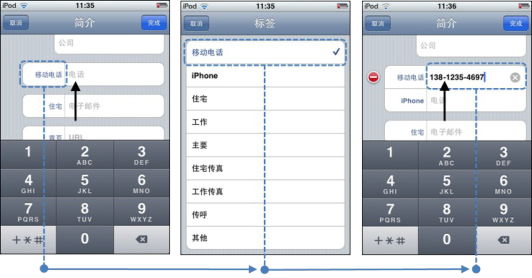
Misunderstanding of In-Field/Adjacent Labels and Separators 84.6% of participants who used typing and 75.0% of participants who used handwriting could not work out this type of errors independently. Participants did not understand in-field labels or in-field separators. They did not know that in-field labels or in-field separators would automatically disappear as soon as they started typing. They repeatedly pressed the delete key to get rid of in-field labels or in-field separators but failed. Then, they pressed buttons adjacent to the in-field labels or in-field separators by mistake (shown in Figure 9). Features that automatically appear or disappear should be carefully used.
Figure 9. In-field labels and in-field separators
Failure to Switch Input Fields 53.3% of participants who used typing and 70.6% of participants who used handwriting could not work out this type of errors independently. During handwriting, participants did not realize the need to switch input fields and entered text in one place. Even after they understood this need, they did not know how to switch to the next input field. One way of switching input filed is to scroll, but participants failed at the start point and the end point of scrolling. They usually started scrolling from the on-screen keyboard, which made the screen fail to move. Besides, they usually did not notice that the display was already at the end and kept scrolling. Another way of switching input field is to press the next step button. Participants confused scrolling with the next step button.
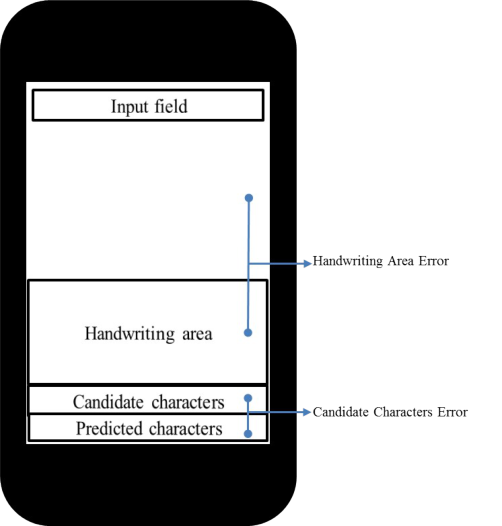
Wrong Handwriting Area and Short Timeout The two types of errors are specific to handwriting. 32.6% of participants could not work out wrong handwriting errors independently. Participants seemed to not understand the need to write inside the handwriting area and wrote in the blank area outside the handwriting area (shown in Figure 10). Also, they often wrote multiple characters at a time. Beside, their hands or fingers sometimes accidentally touch the handwriting area and resulted in additional strokes. 5.9% of participants could not work out short timeout errors independently. Participants did not finish writing one character but the system recognized the input as the next character.
Accident Touch on Unrelated Area 81.3% of participants who used typing and 58.8% of participants who used handwriting could not work out this type of errors independently. Participants accidently touched areas (e.g. the home button) that are not needed by the tasks. They usually complained that touch screen were too sensitive.
Wrong Pressure 14.3% of participants who used typing and 10.0% of participants who used handwriting could not work out this type of errors independently. Participants applied insufficient or excessive pressure to press a button. Their problems with wrong pressure were consistent with findings of previous studies (Massimi et al 2007; Wright et al 2000).
Figure 10. Handwriting errors associated with four input areas
CONCLUSIONS
This study investigated the elderly’s text entry challenges on smart phones and tablets. Participants made 13 types of errors. One branch of errors happed frequently but was easy to work out. Typical examples include errors associated with wrong pressure and short timeout. Most of these errors were related to the elderly’s declined motor skills.
Another branch of errors did not happened frequently, but once happened, few participants could work out independently. Typical examples include the errors associated with the complete button, overuse and misuse of the delete key. Most of these errors were caused by the mismatch between the elderly’s mental model and the designers’ mental model. The elderly tended to expect smart phones and tablets respond in the way that is consistent with their habits in the real world, or in the way that is consistent with their previous experience with feature phones and desktop computers.
Therefore, this study discussed deficits of current interface design and proposed possible solutions to match the elderly’s mental model. Results of this study will help practitioners have a comprehensive understanding of the elderly’s text entry difficulties with smart phones and tablets. Furthermore, this study discussed the cognitive process underlying these text entry errors, which may help practitioners have in-depth understanding of the elderly’s mental models and come up with corresponding design modifications. To conclude, this study could help improve the elderly’s text entry experience on touch screens, which might influence their intention to use smart phones and tablets in the future.
REFERENCES
Dickinson, A., Eisma, R., Gregor, P., Syme, A. and Milne, S. (2005). “Strategies for teaching older people to use the World Wide Web”. Universal Access in the Information Society, 4 (1), 3-15. GPII (2011). The global public inclusive infrastructure. The GPII Website: http://gpii.net. Kang, N. E., and Yoon, W. C. (2008). “Age- and experience-related user behavior differences in the use of complicated
electronic devices” International Journal of Human-Computer Studies, 66(6), 425-437. Kurniawan, S. (2008). “Older people and mobile phones: A multi-method investigation. International Journal of Human- Computer Studies”, 66(12), 889-901. Lee, R. (2012). “Two-thirds of young adults and those with higher income are smartphone owners”. Paper presented at Pew
Research Center. Smartphone ownership update: September 2012.
Li, H., and Graf, P. (2007). “Cognitive, perceptual, sensory and verbal abilities as predictors of PDA text entry error and instructions across the lifespan”. In D. Harris (Ed.), Engineering Psychology and Cognitive Ergonomics (Vol. 4562, pp. 349-358): Heidelberg, Berlin: Springer. Massimi, M., Baecker, R. M., and Wu, M. (2007). “Using participatory activities with seniors to critique, build, and evaluate
mobile phones”. Paper presented at the 9th international ACM SIGACCESS conference, Tempe, Arizona, USA. OASIS (2008). Quality of life for the elderly. The OASIS Website: http://www.oasis-project.eu/ Orlov, L. (2013). Smart phones are impossible to use. The Aging In Place Technology Watch Website: http://www.ageinplacetech.com/blogs/laurie-orlov?page=5 Tuomainen, K., and Haapanen, S. (2003). “Needs of the active elderly for mobile phones”. Paper presented at Universal Access in
HCI: Inclusive Design in the Information Society. Mahwah, New Jersey: LEA. Wright, P., Bartram, C., Rogers, N., Emslie, H., Evans, J., Wilson, B., et al. (2000). “Text entry on handheld computers by older users”. Ergonomics, 43(6), 702-716. Zhou, J., Rau, P.L.P., and Salvendy, G. (2012). “Use and design of handheld computers for older adults: A review and
appraisal”. International Journal of Human-Computer Interaction, 28(12), 799-826. Zhou , J., Rau, P.L.P., and Salvendy, G. (in press). “Older adults’ text entry on smart phones and tablets: Investigating effects of display size and input method on acceptance and performance”, International Journal of Human-Computer Interaction.
LISTED IN THE AHFE DIGITAL BOOKSTORE CATALOGUE
Explore the complete digital volume
Advances in Affective and Pleasurable Design
Read this individual research paper free through the original publisher, or explore the full digital proceedings book.
ISBN 978-1-4951-2109-8
Explore this ISBN in the AHFE Bookstore ↗Listed in the July 2026 bookstore catalogue; search by ISBN to confirm current availability · Digital book purchase optional